Version 2.0.11 and later: Send, Receive and Receive Instrument · iOS 15+
Quick start
Stream a track in three steps
On any track
LinkEffekt Send
Streaming
Another deviceWi-Fi or cable
Same deviceapp to app, from under 1 ms
Onlinea friend, anywhere
In any app
LinkEffekt Receive
In sync
Ableton Live 12.4+speaks Link Audio too: it records any Send and streams its tracks to any Receive.
Open the LinkEffekt app once on every device and allow Local Network access. Without it, the plugins can’t find each other.
Put LinkEffekt Send on the track you want to share. For another device, once: Ableton Link on in both host apps, and in the Send’s gear Ableton Link and Share Audio. Both stay on for every plugin you add later.
Load LinkEffekt Receive on another track, in another app or on another device, and pick the channel in Now Receiving.
Sending from AUM or Logic Pro
In sync. The Send plays the track ahead by the trip over the network, so it lands on your beat. Nothing to set.
Sending from any other app or Live
Turn on Bar Sync in the Receive: one bar late, on your metronome.
LinkEffekt streams audio between music apps: on one iPhone or iPad, between devices on your network (Ableton Link Audio) or over the internet (Online mode). It comes as three AUv3 plugins for any host (AUM, Logic Pro, Cubasis, Drambo, Loopy Pro, Koala, djay, GarageBand and others; what differs between them: Hosts):
Plugin
Type
Use it to
LinkEffekt Send
Audio effect
Streams a track. Insert it on the track you want to share.
LinkEffekt Receive
Audio effect
Plays channels. The standard receiver, for every host.
LinkEffekt Receive Instrument
Instrument
The same receiver as a sound source: for AUM’s source slot or an instrument track.
What can you do with it? Jam across devices, route audio between apps, record iOS audio in Ableton Live, play Live’s tracks on your iPad, record Ableton Move and Note, bring a live act into your DJ set, jam online, monitor a band. Workflows shows each one step by step.
Free and paid: one Send and one Receive are free, in full quality, on your network and on one device. The one-time in-app purchase Unlimited Channels adds unlimited instances, several channels per Receive and Online mode. Buy or restore it in the app or in any plugin; it unlocks every plugin on the device.
2 · Set up once
A few switches, each set once. They stay set, so every plugin you add later works right away. Between devices you need all of them. On one device, app to app or track to track, LinkEffekt takes a direct path, and only Ableton Link in the host apps matters: it puts them on the same beat (Same device or same host).
What
Where
Applies to
Local Network access
Open the LinkEffekt app and allow it.
This device. Without it, the plugins can’t find each other.
Ableton Link
In the host app’s own settings (AUM, Logic Pro, Cubasis…), not only in the plugin.
That app: it shares tempo and beat, so streams can land on the beat.
Ableton Link and Share Audio
The gear in any LinkEffekt plugin.
Every LinkEffekt plugin on this device, in every app.
Ableton Live 12.4+
Settings > Link: Link and its Audio switch.
Live. Sync to Incoming Audio depends on the direction (Hosts: Ableton Live).
After that, load your template and it plays between your apps and devices. Every Receive finds its Send again by name, and Send and Receive set the timing themselves. Online, you join the room again each session.
Shared between plugins
Most controls belong to one plugin and are saved with your project: its name, Gain, Pan, mutes, Live Mode, Buffer, Bar Sync and channel. These reach further:
Unlimited Channels (in-app purchase): every plugin on this device. On your other devices with the same Apple ID, restore it.
Bypass all LinkEffekt Sends: every Send on this device, in every app.
Link Offset with Apply to all channels: every Send in this app.
Nudge with Apply to all channels in this host: every Receive in this app.
Online room: all Online plugins in one app share one room; Leave closes it for all of them.
3 · Workflows
Pick your situation. Each workflow lists only the steps for it, with the one-time setup done; the chapters after it explain every control.
iPad and iPhone in one room: each of you plays a part and hears the other on the beat.
Wi-Fi or cableiPhone · AUMiPad · AUM
On each device, insert LinkEffekt Send on the track you play.
On each device, load LinkEffekt Receive on another track and pick the other device’s channel in Now Receiving.
The status reads In sync: both directions play on the beat.
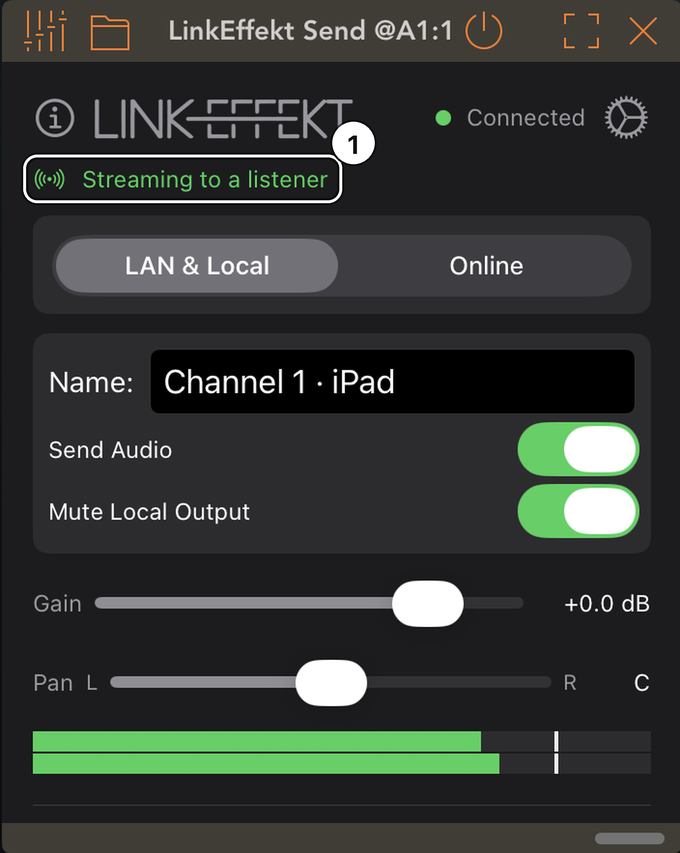
1The Send: someone is listening.
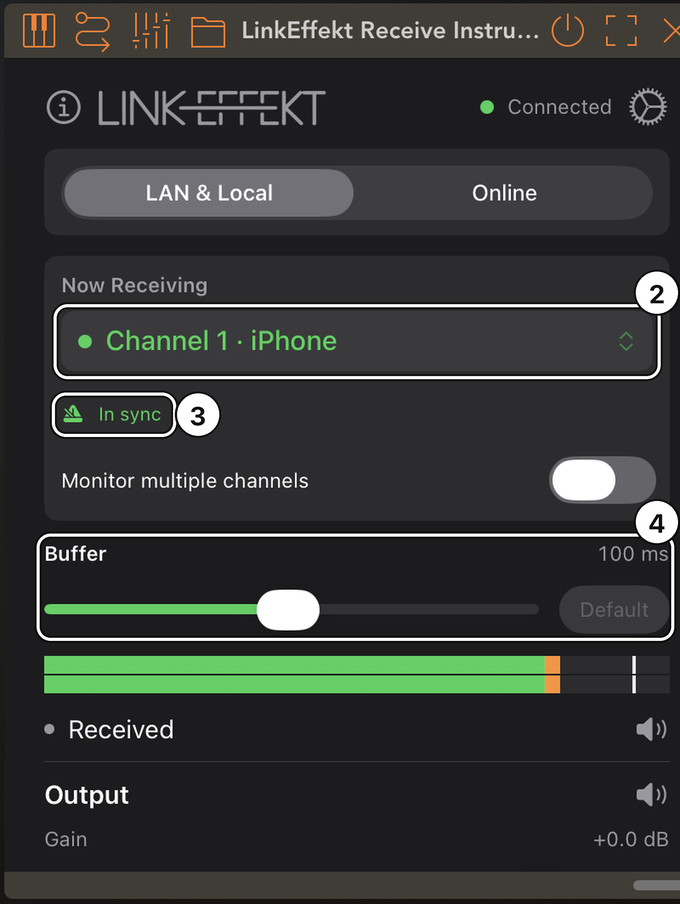
2The other device’s channel, named after the device.
3On the beat.
4Buffer: 100 ms in reserve against Wi-Fi gaps, the default.
Good to know
Each part plays once in the room: the Send mutes your track locally (Mute Local Output), the other device plays it. On headphones, turn it off.
Everything in the sending app sounds a bit later (typically 50 to 150 ms): AUM plays ahead so the other side gets it on the beat. Playing a live instrument there? See Live Mode in LinkEffekt Send.
Logic Pro plays ahead too. Sending from any other app (Cubasis, Drambo, Loopy Pro, Koala)? The other side plays behind the beat: turn on Bar Sync there (one bar late). See Hosts.
A cable instead of Wi-Fi: no AirDrop dropouts and a much smaller buffer (Plug in a cable).
In one room
Monitor a band on one device
Several players, each with a Send; you hear them all on one device: at rehearsal, at the desk, in your in-ears.
Wi-FiEach player · SendYour device · Receive
Each player inserts LinkEffekt Send on their track and names it (e.g. Vocals).
On your device, load LinkEffekt Receive, turn on Monitor multiple channels and tick every channel (one stereo mix). For separate faders, use one Receive per channel.
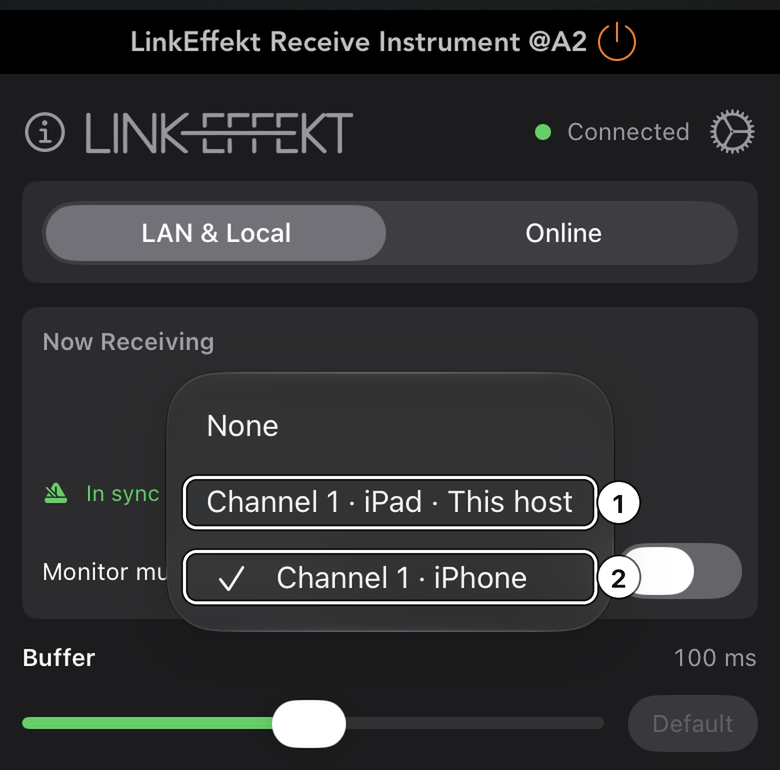
1This host: a Send in this same app.
2The channel you are listening to, with the sender’s device in its name.
Good to know
Several channels per Receive, or several Receives, need the in-app purchase on your device. Each player’s single Send is free.
A player hears a delay on their own instrument? Live Mode in their Send (see LinkEffekt Send).
On one device
Route audio between apps on one device
Everything on one iPad or iPhone: record AUM in Cubasis, or run a synth app through another host’s effects.
this deviceAUMCubasis
In AUM, insert LinkEffekt Send on the channel you want.
In Cubasis, load LinkEffekt Receive on an audio track (or Receive Instrument on an instrument track) and pick the channel tagged This device.
Arm the track and record.
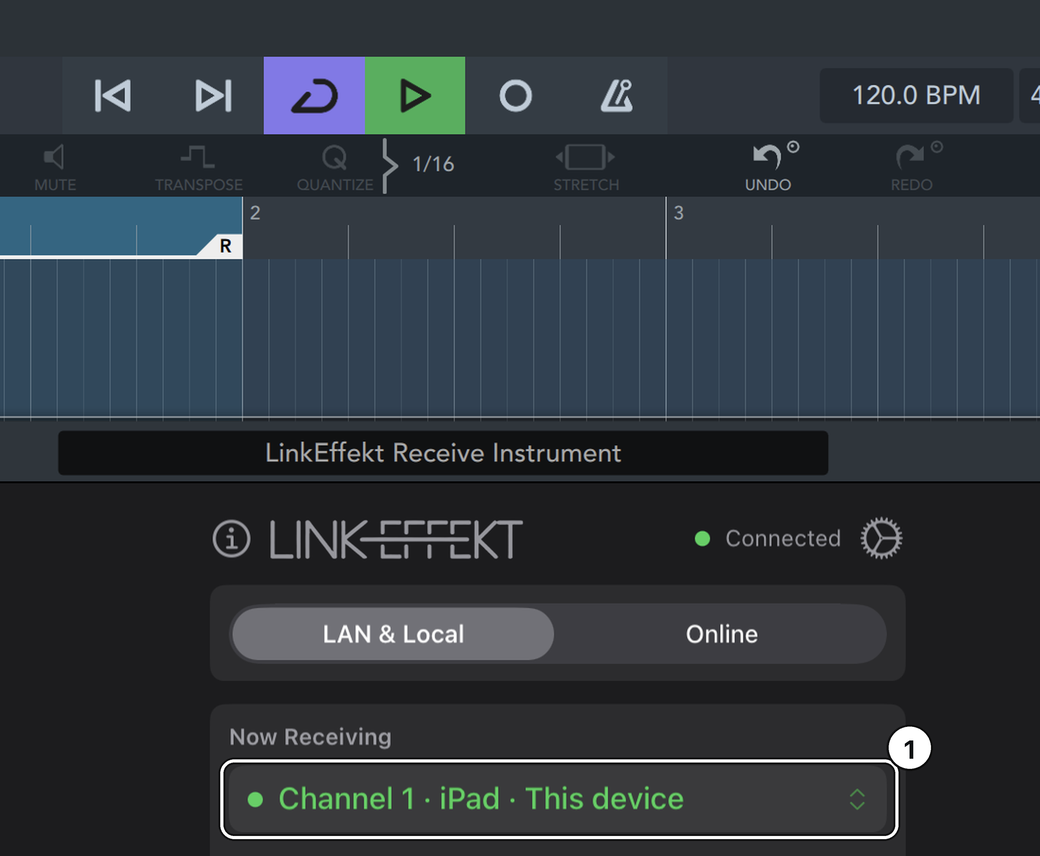
1This device: the Send in AUM, no network involved. A direct path: LinkEffekt adds under 1 ms. From AUM, the Send plays ahead and also covers the extra audio buffer when iOS runs Cubasis first.
Good to know
No Wi-Fi, no network permission, nothing in the plugin’s gear. Only Ableton Link on in AUM and in Cubasis, in their own settings: without it Cubasis keeps its own beat, and the status can’t tell.
Loops in AUM’s File Player: Sync on, so they start on the beat.
Two tracks in the same app (AUM track 1 to track 2) show up as This host.
Tightest timing: both apps at 128 or 256 frames, and Multi-core Processing off in Cubasis (Setup > Audio; more in Hosts: Cubasis).
With Ableton Live
Record iOS audio in Ableton Live
Your iPad session goes into Live, one Live track per iOS track.
Wi-Fi or cableiPad · AUMMac · Live 12.4+
On the iPad, insert LinkEffekt Send on each track you want in Live and name it (e.g. Bass).
In Live, open Settings > Link and turn Sync to Incoming Audio on.
On a Live audio track, set the input to LinkEffekt and the channel, Monitor to In.
Raise Live’s Link Audio latency until playback is stable, then record.
Live’s track input: the peer LinkEffekt, then the channel.
Good to know
Listen through Live: the Send mutes the iPad, so you hear each track once, on Live’s beat. Live delays its own playback on purpose (Sync to Incoming Audio), so Live and the iPad won’t line up by ear.
Works from any iOS app with Ableton Link, not only AUM: Live waits for the incoming audio and puts it on its beat.
The sending app itself sounds a few ms after the beat (Drambo on its own: about 6 ms in our tests)? Set Link Offset in its Send to minus that (gear), best before you start: Live follows a change only slowly, over a few minutes.
Leave AUM’s Link latency compensation at 0: LinkEffekt already places the audio on the Link beat.
Mac sounds late against your iOS devices? System-wide audio tools such as SoundSource can delay every Mac app; exclude Live there (see My Mac sounds late).
With Ableton Live
Play Live’s tracks on your iPad or iPhone
Jam along with Live, run its tracks through iOS effects, or monitor Live on the iPad.
Wi-Fi or cableMac · Live 12.4+iPad · AUM
In Live, open Settings > Link and turn Sync to Incoming Audio off.
On the iPad, load LinkEffekt Receive and pick a Live track in Now Receiving (every track with an audio output, returns and Main included).
Turn on Bar Sync. The status reads On your metronome · one bar later.
Good to know
Live doesn’t play ahead: without Bar Sync its tracks play behind your beat, and the status says by how much.
In this setup Live’s metronome lines up with your iOS apps. Leave AUM’s Link latency compensation at 0.
With Ableton Live
Both directions with Live
The iPad sends to Live and plays Live’s tracks at the same time.
Live to iPad: load the Receive as in Play Live’s tracks, with Bar Sync on; Sync to Incoming Audio stays on.
Each player listens to their own device: at the Mac to Live, at the iPad to the iPad. Each direction lands on the beat of the side that receives it.
Good to know
Live’s speakers and the iPad’s sit apart by Live’s Link Audio latency (Sync to Incoming Audio), so don’t listen to both at once. Which setting for which direction: Hosts: Ableton Live.
With Ableton Live
Take the iPad to the couch
Your iPad streams every track to Live. Take it elsewhere and hear the whole session on the iPad again.
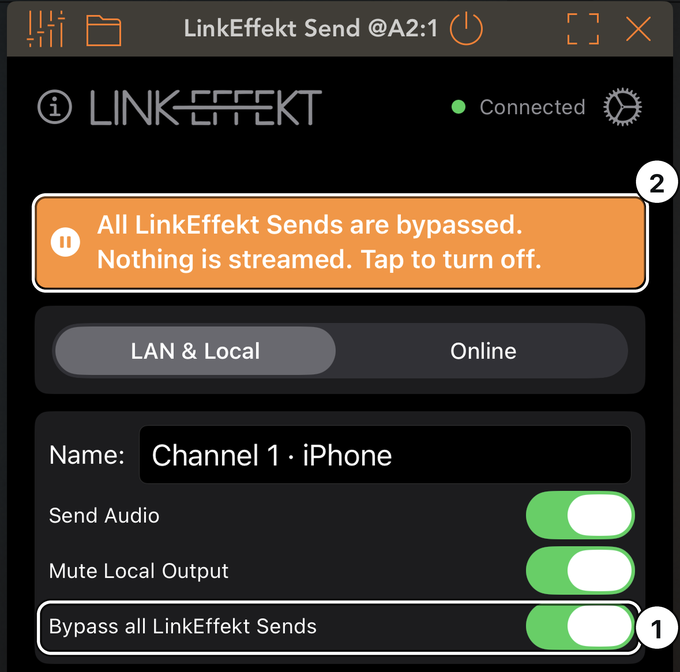
In any LinkEffekt Send, turn on Bypass all LinkEffekt Sends (right under Mute Local Output).
Every Send on the iPad stops streaming, in every host, and every track plays on the iPad. An orange note in each Send says so.
Back at Live, tap the orange note to stream again.
1The switch, in any Send.
2The note in every Send. Tap it to stream again.
Good to know
The switch stays on until you turn it off, also after a restart.
In your DJ set
Add a live act to your DJ set
A groovebox, a synth or a whole Live set plays into djay, on the beat of your mix: Ableton Move, AUM on a second iPad, or Ableton Live on the Mac.
Wi-Fi or cableOther deviceiPad · djay
Turn on Ableton Link in djay’s settings and on the other side (Move, AUM, Live): both then share tempo and beat.
On the other side, stream what you play: in AUM a LinkEffekt Send on each track; Move, Note and Live send by themselves with Link Audio on (Move and Note, Live).
In djay, load LinkEffekt Receive as the master effect, pick the channel in Now Receiving and unmute Host track: that is djay’s own output.
From Move, Note or Live, turn on Bar Sync: locked to djay’s bars, one bar late. From AUM the stream lands on the beat as it is.
Good to know
Playing pads or keys live on the other side: listen there on headphones. djay’s speakers play your part on the beat of the mix, later than your hands. In AUM, turn on Live Mode and turn off Mute Local Output in the Send, and Bar Sync in djay (see LinkEffekt Send).
The level of the stream: Received in the Receive’s mixer. Two full mixes add up, so pull it down if the meter turns red.
Several channels at once, drums and bass: Monitor multiple channels in the Receive, with the in-app purchase.
Your set into Live instead: load LinkEffekt Send as djay’s master effect and record it as in Record iOS audio in Ableton Live. djay takes one master effect, so on your network it’s one direction at a time.
Back to back with a DJ friend somewhere else: both load LinkEffekt Receive as djay’s master effect and play over the internet, as in the tip in Jam online with a friend. Set the same Headroom in djay on both sides, or one mix arrives louder than the other.
Over the internet
Jam online with a friend
Your friend is elsewhere. You both play, and each hears the other locked to their own bars.
internet, peer-to-peerYouYour friend
Both of you need the in-app purchase.
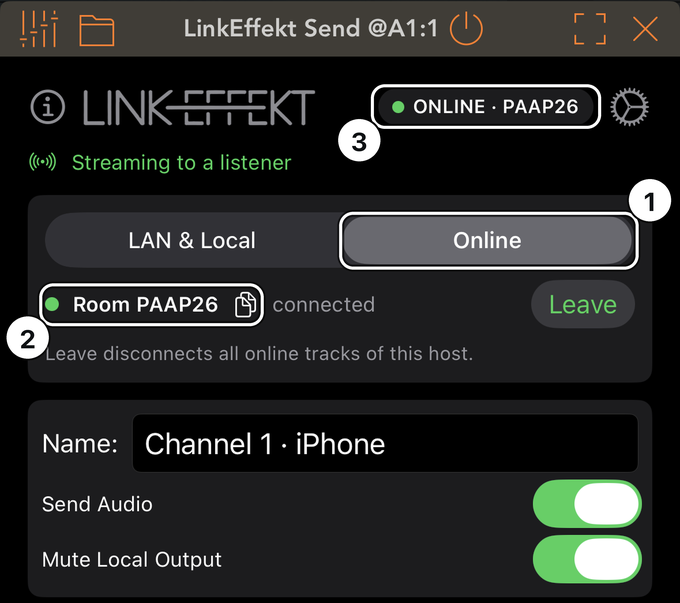
You: in LinkEffekt Send, switch to Online, tap Create Room and send your friend the code (copy button next to it).
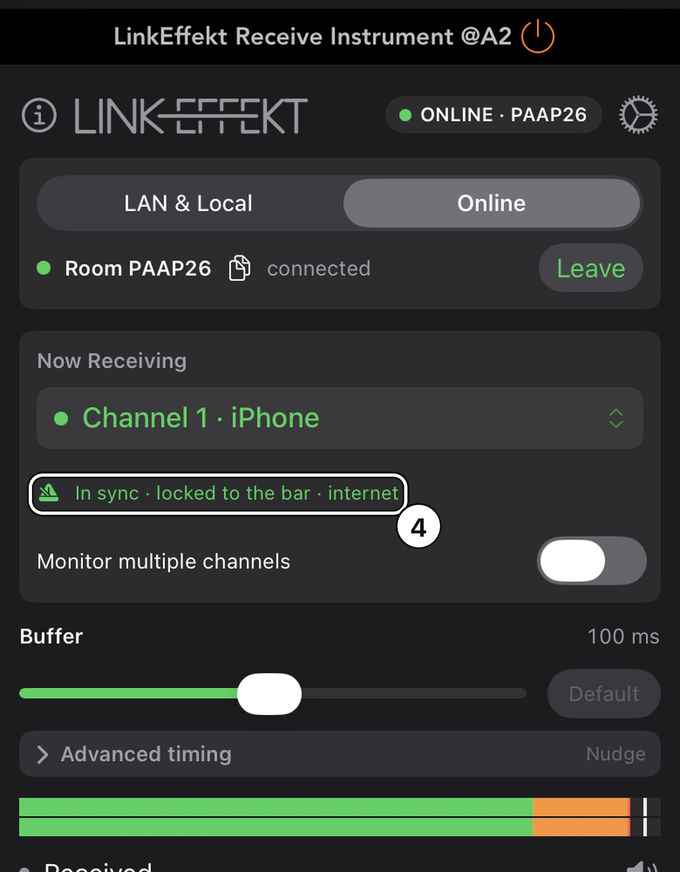
Your friend: in LinkEffekt Receive, switch to Online, enter the code, tap Join and pick your channel.
Both of you set the same tempo and press play in the host. In an app without a transport, turn on Ableton Link there and in the plugin instead.
For the way back, your friend loads a Send and you a Receive; they join the same room by themselves (one room per host app).
1Online.
2The room code with its copy button; the green dot means your friend is connected.
3The ONLINE badge shows the room in every instance.
4Locked to the bar, over the internet.
Good to know
Your friend’s audio lands on your “1”, whole bars late. Each hears the other on their own beat, which is right as long as each listens to their own device.
To hear your own part while you stream, turn off Mute Local Output in the Send.
Tip: back to back with one plugin slot each, for example two DJs in djay, whose master effect takes a single plugin: both of you load LinkEffekt Receive there instead of a Send. You create the room, your friend joins; both turn on Send my track, pick the other’s channel and unmute Host track to hear yourselves too. With Ableton Link on in both apps, it locks to the bar (see Online mode).
4 · Hosts: what to set in your app
LinkEffekt runs in any AUv3 host. One thing differs from app to app: whether the sending app plays the track ahead, so the stream lands on the receiver’s beat without delay.
AUM and Logic Pro for iPad play ahead: the receiver plays the stream on its beat. No Bar Sync needed.
Every other app, and Ableton Live, sends as it plays: the receiver plays the stream a fixed distance behind the beat, or with Bar Sync exactly on the bar, one bar late.
As a receiver, every app with Ableton Link on (Set up once) plays the stream on its own beat.
App
As the sender
What to set
AUM
On the beat
Link latency compensation (AUM’s Link settings) at 0. Loops in AUM’s File Player: Sync on, so they start on the beat. To only receive, load Receive Instrument as the channel’s source. Send and Receive in the same AUM session: put the Receive on a channel to the right of the Send (0.9 ms instead of 6.2 ms at 256 frames in our tests).
Logic Pro for iPad
On the beat, from the first Play
Nothing. After switching Live Mode, stop and play again (see below).
Nothing else. On its own it sounded about 6 ms after the beat in our tests; Bar Sync takes that out too.
Loopy Pro
Needs Bar Sync
Receive FX plays only on a track where something runs; otherwise use Receive Instrument. The plugin window opens small: drag it larger. Send and Receive in the same Loopy project: the Receive got the audio one audio buffer later in every arrangement we tried (3.6 ms at 128 frames).
Ableton Link on in djay’s settings, so djay and the stream share one beat. The master effect takes one plugin. A Receive there: unmute Host track, it is djay’s own output (Add a live act to your DJ set).
GarageBand
Not on the beat (no Ableton Link)
Nothing. Streams and receives fine, without a shared beat: for recording and monitoring.
Your app isn’t listed? Send from it with Bar Sync off: the receiver’s status reads In sync if the app plays ahead, otherwise how far after your metronome it lands.
Logic Pro for iPad
Logic builds in a plugin’s delay only when the plugin is inserted or a project loads, and when playback starts. So the Send plays a fixed 150 ms ahead in Logic, enough for the default Buffer, and the stream lands on the receiver’s beat from the first Play.
After you switch Live Mode on or off, Logic follows on the second Play. Until then the Send shows “Stop and play again to lock Logic to the beat.”
Receiving in Logic is on the beat too.
Receive Instrument has one stereo output: for separate tracks, use one Receive per channel.
Cubasis
Cubasis doesn’t play a plugin ahead, so a stream from Cubasis needs Bar Sync at the receiver. Turn off Multi-core Processing (Setup > Audio): it adds a buffer after the plugin that plugins can’t see; Cubasis shows it there as Guard buffer.
Off: guard buffer 0 ms, received audio tight without Nudge, and any buffer size works.
Must keep it on? Read the Guard buffer (Setup > Audio, tap the latency total) and set Nudge in the Receive in Cubasis to minus that value (Bar Sync or Online). Example: a Guard buffer of 21 ms needs Nudge −21.
Cubasis as the sender: the sign flips. Turn Multi-core off there, or use a positive Nudge at the receiver.
Koala
Effect slots, and with them LinkEffekt Send and Receive, need Koala’s mixer (an in-app purchase in Koala).
The stream follows Koala’s beat. If it sounds off, first check that Koala’s metronome lines up with your other Link apps.
A Send you delete from a bus can keep streaming until you close Koala, and its channel stays in the list until then.
Ableton Live 12.4+
Live speaks Link Audio itself (Link and its Audio switch on, see Set up once): it records any Send as a track input and streams every track with an audio output to any Receive. One switch in Settings > Link decides the timing, Sync to Incoming Audio: Live then delays its own playback by its Link Audio latency, so incoming audio lands on its beat.
Each side hears the other on its own beat. Live’s speakers play later than the iPad’s: each player listens to their own device.
Leave AUM’s Link latency compensation at 0: LinkEffekt already places the audio on the Link beat.
Live doesn’t play ahead: without Bar Sync its tracks play behind your beat, and the status says by how much.
Your Mac sounds late against every iOS app, also with Sync to Incoming Audio off? See My Mac sounds late.
5 · Basics: how a stream starts
The same in every app (what differs per app: Hosts). Send and Receive work across two devices, between two apps on one device, and between tracks in one host. Between devices, the one-time setup comes first.
Sender: insert LinkEffekt Send on a track.
Receiver: load LinkEffekt Receive in the other app or on the other device (same Wi-Fi, or a cable: see below).
In the receiver, pick the sender’s channel in Now Receiving.
Within about a second you hear audio and the meter moves. The dot by the channel turns green, the sender shows “Streaming to a listener”, and the receiver’s status reads:
In sync · 0.9 ms after your metronome
If the sending app doesn’t play ahead it reads “… ms after your metronome” (see Hosts); without a shared beat, “Free-run, not locked to the beat”.
Channel names: a new Send takes its host track’s name, or “Channel 1”, “Channel 2”…, plus the device: “Bass · iPad”, “Channel 1 · iPhone”. Numbers count across all apps on a device, so no two channels share a name. A name you type, or one loaded with a project, stays as it is.
Tip: plug in a cable
Wi-Fi can pause for a moment, above all around AirDrop (see Dropouts after AirDrop). A cable doesn’t, and needs no router.
Plug the iPhone into the iPad, with any cable that charges the iPhone from the iPad (USB-C, Lightning or with an adapter).
On the iPhone, turn on Personal Hotspot (Settings > Personal Hotspot > Allow Others to Join).
On the iPad, turn Wi-Fi off. Settings now shows Ethernet, and the iPhone’s channel appears as usual.
What you get: no dropouts from AirDrop, AirPlay and the like, and in our tests the Buffer went from 100 down to about 25 ms.
One device needs Personal Hotspot (an iPhone, or an iPad with cellular). The other’s internet then runs over mobile data; the audio stays on the cable.
At home, a wired network works too: each device on a USB-C Ethernet adapter, Wi-Fi off.
Same device or same host: app-to-app routing
Everything on one iPhone or iPad? LinkEffekt takes a direct path: no Wi-Fi, no network permission, nothing in the gear, and LinkEffekt’s lowest latency. For the beat, keep Ableton Link on in the host apps.
A sender in another app on the same device appears as a channel tagged This device.
A sender inside the same host app (e.g. AUM track 1 to track 2) appears as This host.
Example: AUM into Cubasis, see Route audio between apps on one device. The same works for a synth app through another host’s effects, or a DJ app into a recorder: wherever iOS has no direct path between apps.
Latency on one device: LinkEffekt adds under 1 ms. If the receiving app reads before the sending app has written, the audio arrives one audio buffer later (2.7 ms at 128 frames, 5.3 ms at 256). Which of the two gets there first is often a matter of less than a millisecond, so it can come out differently from one session to the next. LinkEffekt can’t choose it; the status line shows what you get. Sending from AUM or Logic Pro to another app, the Send plays ahead and covers that buffer too. Within one AUM session (This host), put the Receive on a channel to the right of the Send: to its left, the Receive got the audio one buffer later in our tests. From any other app, switch on Bar Sync to put the audio on your metronome, one bar later. Smaller buffers keep it small: 128 or 256 frames (AUM: Settings > Buffer Size; Cubasis: Setup > Audio > Latency).
6 · LinkEffekt Send: reference
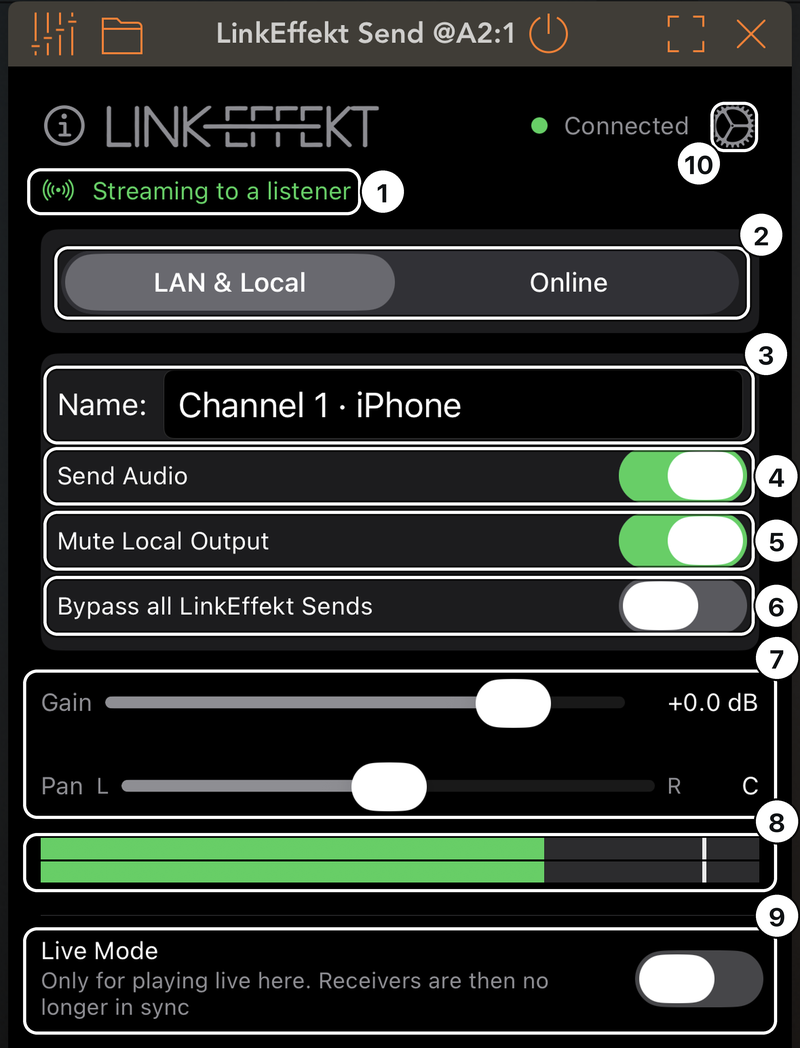
1Status line
2Destination
3Name
4Send Audio
5Mute Local Output
6Bypass all LinkEffekt Sends
7Gain and Pan
8Level meter
9Live Mode
10Gear: Ableton Link settings
All Send controls in detail
Status line: “Streaming to a listener” or “Waiting for a receiver”; listeners on this device count too. Online, the ONLINE badge shows the room instead. With Bypass all LinkEffekt Sends on, it stays empty and the orange note says it.
Destination: LAN & Local / Online: where this track streams (LAN & Local includes listeners on this device). Back to LAN & Local takes only this track out of the room; the room stays open until you tap Leave (shown in the LAN & Local tab).
Name: what receivers see. Renames reach them live, also Online, and they stay subscribed. If another channel in your network has the same name, the status line offers Rename (adds the device or the next free number); LinkEffekt never renames on its own.
Send Audio: streaming on or off; off passes the track through locally only.
Mute Local Output (on by default): mutes the track here after streaming, so you don’t hear it twice. It only acts while the track streams (not with Send Audio off, the plugin bypassed or Bypass all on). Turn it off to hear yourself when you can’t hear the receiver: Online, headphones on the receiver, another room. In AUM and Logic Pro the track then plays as late as everything else in the app, so it stays in time (see Live Mode). In a host with a Mix control on the effect slot, set it to 100 % for the Send; below that, the track plays quieter here.
Bypass all LinkEffekt Sends: one switch for every Send on this device, in every host: nothing streams, every track plays here. An orange note in every Send says so; tap it to turn off. It stays on until you do, also after a restart. Example: Take the iPad to the couch.
Gain / Pan: for the stream and the local output, click-free. Gain at the bottom is true silence; pan keeps the center at full level.
Bypass (in your host): stops the stream and passes the track through unchanged.
Level meter: post gain/pan; red = clipping (tap to reset).
Live Mode (at the bottom of the Send):
Why it exists: in AUM and Logic Pro, the Send has the host play this track ahead by what its receivers need (in AUM their buffer plus the connection, up to 200 ms; in Logic a fixed 150 ms), so they play it on their beat (see Beat Sync). To stay in time, the host delays everything else in the app by the same amount.
When to turn it on: only if you play live in this app and hear that delay. Then there’s no delay here, but receivers are no longer in sync: they play behind the beat (Bar Sync puts it back on the bar, one bar late). The line under the switch turns orange.
Switching: listening receivers follow with a short jump. In Logic, stop and play again (see Hosts: Logic Pro).
Where it appears: only where the host really plays ahead (AUM while a receiver listens, Logic Pro); never Online.
Gear: Ableton Link and Share Audio, one setting for every LinkEffekt plugin on this device (Set up once). Only other devices need them; Online and this device work without. Below:
Link Offset (±100 ms): shifts this channel for receivers that place it by its time stamps, above all Ableton Live with Sync to Incoming Audio: if the sending app itself sounds 6 ms after the beat, −6 ms puts it on Live’s beat. Set it before you start, Live follows a change only slowly; if Live then stutters, raise its Link Audio latency. LinkEffekt Receive needs no offset: Bar Sync puts the audio on your metronome. Apply to all channels sets it for every Send in this host.
Send at 48 kHz: for receivers that need 48 kHz, e.g. Ableton Live's Link input.
The plugin version (support asks for it).
Orange banner “Share Audio is off”: only where it blocks something (no listener on this device, destination LAN & Local). Tap it to open the settings.
Without the purchase, a second Send passes audio through but doesn’t stream (“Channel Limited”, with an unlock button).
7 · LinkEffekt Receive: reference
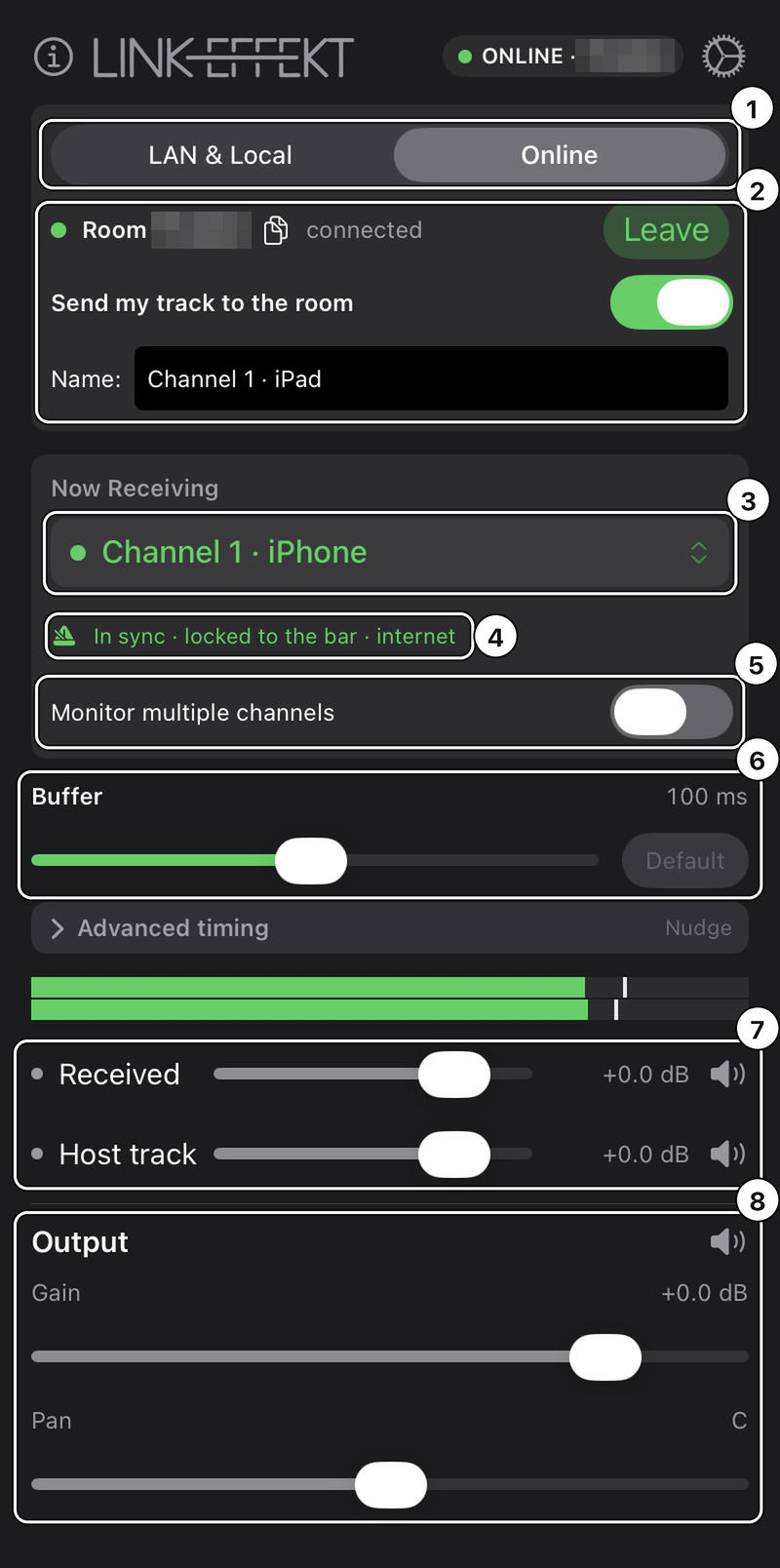
1LAN & Local / Online
2Room and Send my track (Online)
3Now Receiving
4Status
5Monitor multiple channels
6Buffer
7Received and Host track
8Output
Bar Sync appears next to the status where it helps.
All Receive controls in detail
LAN & Local / Online: which channels the list shows. LAN & Local includes the direct paths on this device (This host / This device).
Now Receiving: pick one channel. “(unavailable)” means the sender is gone (app closed, network lost).
Monitor multiple channels (in-app purchase): sums several channels into one stereo output; channels from the other tab are tagged, so nothing is summed unseen. For separate faders, use one Receive per channel.
Status: one line under the channel menu. Problems and hints appear there in orange (see Troubleshooting), e.g. “Channel 1 · iPad found: tap to listen”; while audio flows, dot, status and meter say it. The ms values are LinkEffekt’s own measurement; in our recordings they matched within about 1 ms.
Status
Meaning
In sync · 0.9 ms after your metronome
Under 1 ms from your metronome, audio flowing.
… ms after your metronome · … ms of it from the sending app
How far you hear the audio after your metronome, and how much of that the sending app adds itself. The sending app doesn’t play ahead (any app but AUM and Logic Pro, or Live Mode on; see Hosts). From 1 ms on, the Receive offers Bar Sync.
… ms after your metronome · the sending app can’t send further ahead
The sending app already plays ahead as far as it can (200 ms); the rest stays after your metronome, for example with Bluetooth headphones on this device. Bar Sync puts it on your metronome, one bar late.
No shared beat. Audio flows, just not on the beat.
Free-run. Enable Ableton Link (gear)…
Says how to lock to the beat on LAN.
Press play in your host to lock to the beat
Online: the beat lock waits for your host’s transport.
No beat from your host. Turn on Ableton Link to lock to the bar.
Online, in an app without a transport, such as a DJ app’s master effect: turn on Ableton Link in that app and in the plugin (gear). The stream then locks to the Link bars.
Tempo mismatch
Online: the line names both tempos.
Bar Sync (next to the status; Online is always on the bar): locks the incoming downbeat to your bar, one bar late, which leaves plenty of reserve against a shaky connection. Offered where it helps: when audio plays behind the beat or dropouts keep coming, and on This device whenever the audio sits 1 ms or more from your metronome, for example when the sending app itself sounds a few ms after the beat. It stays off until you switch it on. Needs Ableton Link on in the host apps (see Set up once).
Buffer (3 to 200 ms): audio held in reserve against gaps, like Live’s Link Audio latency.
Default: 100 ms over a network, none on the same device (LinkEffekt adds under 1 ms there, plus one audio buffer when iOS runs the receiving app first).
On the beat or behind it: a sender in AUM plays that far ahead, so you get your beat and the full reserve. A sender in Logic Pro plays a fixed 150 ms ahead, enough for the default. From any other app the audio plays behind the beat by connection plus buffer, as the status says.
Fixed while you play: set when you pick a channel; then nothing moves it. A gap longer than the buffer is a short dropout; the audio returns on the beat.
Your own value: move the slider; it applies at once and the sender follows (up at once, down after ten seconds). Default resets it.
Dropout count: more than two in ten minutes show as a count next to Buffer: raise it until it stays quiet. Tap the count to reset it.
If the connection changes while you play (a new buffer size in the sender’s host), LinkEffekt measures once more: later audio raises the value (a gap of up to two seconds), earlier audio lowers it without a dropout. Announced changes (Live Mode, Bluetooth headphones) and ordinary hiccups never trigger this.
Advanced timing (only with Bar Sync and in Online mode, collapsed by default):
Nudge (±100 ms): moves where the received downbeat lands (minus = earlier). A value other than 0 shows next to “Advanced timing”. Apply to all channels in this host uses one value for every instance there, since it corrects the host’s own output delay.
Mixer, in signal order: Received (the stream), Host track (effect only: the track’s own input, muted by default against feedback) and Output (gain, pan, mute). Received and Host track each have their own level, so you set the balance before they add up; the arrow next to a level resets it. Bypassing the Receive in your host unmutes the host track: mind a live mic near speakers.
After loading a project, the Receive picks its saved channel again, by sender, else by name, but only if exactly one channel has that name. Otherwise it waits and says “2× Channel 1: pick the right one.”
When the sending app restarts, its channel returns under the same name, and the Receive finds it again within seconds (same rule: only if the name is unique).
Gear, then Settings: the same Ableton Link settings as in the Send (one setting for every LinkEffekt plugin on this device), and the plugin version.
Diagnostics for support: each instance logs its timing on this device; nothing leaves it on its own. If something sounds wrong, keep playing a minute, then tap Share diagnostics in the LinkEffekt app. From 2.0.4 the file is encrypted for support and keeps the last seven days. Share after playing: the share sheet can unsettle the Wi-Fi (see Dropouts after AirDrop).
Receive or Receive Instrument? Same engine. Use the effect wherever you can insert it, the Instrument where the channel needs a source (AUM source slot, instrument track). Both have one stereo output.
8 · Online mode
Online mode streams over the internet, peer-to-peer and encrypted (DTLS). Both sides need the in-app purchase. Walk-through: Jam online with a friend.
A: in LinkEffekt Send, set Destination to Online, tap Create Room and share the code (copy button next to it).
B: in LinkEffekt Receive, switch to Online, enter the code, tap Join and pick A’s channel.
For two-way audio, B also loads a Send (or uses Send my track, see below).
Both press play in the host, at the same tempo. The audio locks to your bar, whole bars late (see Beat Sync). An app without a transport, such as a DJ app, locks through Ableton Link instead: turn it on in the app and in the plugin.
To hear your own track, turn off Mute Local Output in the Send (on by default, so nobody in one room hears a track twice).
The ONLINE badge in the header shows the room code: green = connected, orange = waiting for the peer or reconnecting, gray = room closed.
Good to know
One room per host app: all Online instances in a host share one room; the first creates or joins, the others follow. Leave disconnects all of them.
Several tracks: each Send is its own channel at the peer (up to 8 per direction).
Send my track (Receive effect, Online): also streams this track into the room, two-way in one plugin slot, e.g. for DJ apps. Name below it is what the other side sees; left empty, the stream is named like a channel, e.g. Channel 1 · iPad. To hear yourself too, unmute Host track.
Room codes are one-time invitations; the audio flows peer-to-peer and encrypted; if no direct connection is possible, a relay forwards it, still encrypted. A room with one participant closes after 30 minutes; active sessions have no limit.
Dropouts reconnect by themselves: after a network gap, a locked screen or sleep, LinkEffekt rebuilds the connection and shows reconnecting…; there is no need to leave. If the other side left, it shows waiting for peer… until they join again with the same code.
9 · Beat Sync: how it works and what to expect
Audio over a network always arrives late. LinkEffekt makes that delay musical. Where the stream lands depends on the sending app (Hosts):
Sending from AUM or Logic Pro: the Send plays ahead by the trip, so the audio lands on your beat from the first Play, and nothing on the receiving side waits.
Any other sender: a fixed distance behind the beat, or with Bar Sync exactly on the bar, one bar late.
Online: always on the bar.
How it works, in detail
On the beat, no offset (AUM, Logic Pro): the Send has the host play the track ahead by what its receivers ask for (in AUM buffer plus connection, up to 200 ms; in Logic a fixed 150 ms). The receiver plays it on your beat with the full buffer in reserve; Bar Sync isn’t needed.
Several receivers: the sender serves the one that needs the most.
In a jam, where both devices send and receive, both directions stay on the beat.
The price: everything in the sending app sounds that much later (typically 50 to 150 ms). Playing live there? Live Mode in the Send (see LinkEffekt Send); receivers then play behind the beat.
A fixed distance behind the beat (every other sender, or Live Mode on): the receiver places the audio on your Ableton Link beat, late by connection plus buffer (the status says how far), plus any delay your host adds after the plugin. It doesn’t drift. Fine for monitoring; for work on the beat use Bar Sync.
Bar Sync (LAN) and Online: the delay is rounded up to whole bars; the incoming “1” lands on your “1”, usually one bar later (2 s at 120 BPM).
Suits sequenced material: someone playing live on the sending device would hear their part again a bar later from a receiver in the same room.
Online needs the transport playing and the same tempo on both sides. After play, expect about a bar of silence, then it locks.
If the sending app itself sounds a few ms after the beat, Bar Sync takes that out too; Nudge is for anything left.
Recording it? Move the recording earlier by the bars Bar Sync added, usually one.
Free-run: no shared beat (an app without Ableton Link, such as GarageBand), lowest latency, no alignment. Fine for monitoring, speech or playing by ear.
On your network, both host apps need Ableton Link on (see Set up once). Over the internet the two metronomes are not aligned: each side hears the other on their own beat, which is what you want when each listens to their own device.
10 · Troubleshooting
No channel appears in Now Receiving (LAN)
All on one device? Look for This device / This host: those need no Wi-Fi, permission or Link (see Same device or same host).
Same Wi-Fi? Some routers isolate clients (“AP/client isolation”): turn that off, or use a hotspot.
Open the LinkEffekt app once and allow Local Network (Settings → Privacy → Local Network), then restart the host app.
Ableton Link and Share Audio on, in the gear of any LinkEffekt plugin on each device (Set up once).
Audio arrives, but off the beat
Ableton Link on in both host apps, not only in the plugin, also on one device? Without it each app keeps its own tempo and bar, and the status can’t tell: it may still show a small number (see Set up once).
Same tempo? With Link on, the apps follow each other.
A loop that runs free of its app’s beat lands off the beat too, and the status can’t see that: it only knows the beat the sending app reports. In AUM’s File Player, turn on Sync.
Channel selected, but no sound: read the status under the channel menu
No audio from the sender. Is Share Audio on there? Same network? · the sender isn't streaming: Share Audio off, Send Audio off, or a different network.
The host is not running this plugin… · the host never renders the channel. In AUM: give the channel a source, or use Receive Instrument as the source.
Receiving, but Received is muted below / … Output is muted below / … Output Gain is at −∞ · un-mute or raise the control it names.
Free limit: this is a second receive instance… · second Receive instance without the in-app purchase; unlock or remove it.
No audio from the peer… · (Online) the peer left the room or isn't streaming.
2× …: pick the right one. · (after loading a project) the saved name exists more than once; pick the channel in the menu.
Crackles or dropouts
The buffer is fixed once you pick a channel, so a shakier connection means dropouts, not a moving number. After more than two in ten minutes, the Receive shows their count next to Buffer: raise the Buffer until it stays quiet (tap the count to reset it). With a sender in AUM, a larger buffer stays on the beat; with a sender in Logic Pro, as long as it fits the 150 ms Logic plays ahead. On weak Wi-Fi move closer to the router, or use a cable.
Dropouts in bursts after AirDrop
AirDrop, AirPlay, Universal Control, Sidecar and Handoff use a direct radio link between Apple devices. In our tests the Wi-Fi then paused again and again, for up to half a second: more than a buffer on the beat can cover (Bar Sync can, one bar late).
It starts when a share sheet opens and can last about 15 minutes after an AirDrop. Restarting apps doesn’t help; it stops by itself.
So while you play, don’t AirDrop or open a share sheet on any device, also not to your Mac.
Background and lock screen caused no dropouts in our tests.
If you can set your router’s channel: 5 GHz on 44 or 149 (2.4 GHz: 6), the channels the direct link usually uses.
The receiver goes quiet or stutters for up to two seconds, or jumps once
The connection changed (a new buffer size in the sender’s host). The receiver measures once more and plays on (see Buffer in LinkEffekt Receive). Live Mode on the sender costs only a short jump. Bluetooth headphones on either device cost a short break while iOS switches the output; LinkEffekt picks up the new delay by itself, and with Bar Sync the audio lands back on your metronome.
Feedback howling
A live mic on the receiving track feeds through. Keep Host track muted (the default), or use the Receive Instrument (no input).
I hear the track twice (sender side)
Dry signal plus stream: keep Mute Local Output on in the Send.
Everything in my sending app sounds a bit late
That is the Send playing ahead for its receivers, in AUM and Logic Pro (see Beat Sync). Playing live there? Live Mode in the Send; receivers are then no longer in sync.
Online: “Room not found”
A typo in the code (letters and numbers only), or the room expired while empty. Create a new room.
Online: stuck on “waiting for peer”
The other side hasn’t joined, or used a wrong code. Share it again; both sides need the in-app purchase.
Online: “reconnecting…”
The connection dropped and LinkEffekt is rebuilding it, usually within seconds. If it stays, check that both devices are online; the other side needs LinkEffekt 2.0.2 or later to rebuild from its end too.
Online: “room closed”
A room with only one participant closes after 30 minutes. Tap Leave and create a new room.
Beat Sync won't lock (Online)
Transport playing on both sides? Same tempo? The status line names what’s missing.
Timing is stable but consistently early or late (LAN)
On the receiver, turn on Bar Sync and use Nudge under Advanced timing. Without Bar Sync there’s nothing to nudge: audio can’t play earlier than it arrives. Receiving in Ableton Live? There Link Offset in the Send (gear) moves it.
My Mac sounds late against my iOS devices (Ableton Live, any Link app)
System-wide audio tools on the Mac, such as SoundSource or a system-wide EQ, can add a delay to every app that Link can’t see. Exclude your DAW there (SoundSource: Settings, Exclusions, then restart the DAW) or quit the tool. In our test with SoundSource: about 55 ms.
Ableton Live's metronome sounds later than my iPad's
Sync to Incoming Audio is on in Live: it delays Live on purpose, right while you send to Live (see Hosts: Ableton Live). If you only receive Live’s tracks, turn it off.
On one device it’s sometimes under 1 ms, sometimes a few ms more
It depends on whether the receiving app reads before the sending app has written. Then the audio arrives one audio buffer later. Which of the two gets there first is often a matter of less than a millisecond, so it can change from one session to the next. Sending from AUM or Logic Pro covers that; from any other app, switch on Bar Sync. See Same device.
Received audio sits slightly behind my local tracks
The status says how far: the sending app doesn’t play ahead (see Hosts). A sender in AUM or Logic Pro with Live Mode off plays on the beat. From any other app, for recording on the beat: Bar Sync on, Nudge if needed, then move the recording earlier by the bars Bar Sync added.
11 · Frequently asked questions
Does LinkEffekt work with Ableton Live?
Yes, both ways. Live 12.4+ receives LinkEffekt Send as an input. Live also sends: turn on Link and its Audio switch (Settings > Link), and every Live track with an audio output appears in LinkEffekt Receive. Live doesn’t play ahead, so use Bar Sync. Sync to Incoming Audio: off to receive Live’s tracks, on to record into Live. Which setting for what: Hosts: Ableton Live.
Can I record Ableton Move or Note?
Yes. Move 2.0 and Note 2.0 and later send Link Audio; they don’t receive it. With Link Audio on in Move or Note and both on the same network, their channels appear in LinkEffekt Receive in any host, ready to record in Logic Pro, AUM or Cubasis. Setup on the Ableton side: Ableton’s Link Audio FAQ.
Does it work without a network?
Yes, between apps on one device (This device / This host): no network, no permission, nothing in the gear; for the beat, Ableton Link on in the host apps (see Same device or same host). Only other devices and Online need a connection.
How many channels can I run?
With the in-app purchase: as many Send/Receive instances as your device handles; Online supports up to 8 streams per direction per host.
Does audio go through your servers?
No. Online audio is peer-to-peer and encrypted; the server only connects the two of you. If no direct connection is possible, a relay forwards the still-encrypted stream.
Why is there always some delay?
Physics: network transit plus a safety buffer. LinkEffekt keeps the delay stable and musical (see Beat Sync); with a sender in AUM or Logic Pro it lands on your beat.
Which sample rates are supported?
The host's rate (44.1/48/96 kHz…) on both sides; LinkEffekt converts internally. Online always transmits at 48 kHz/Opus.